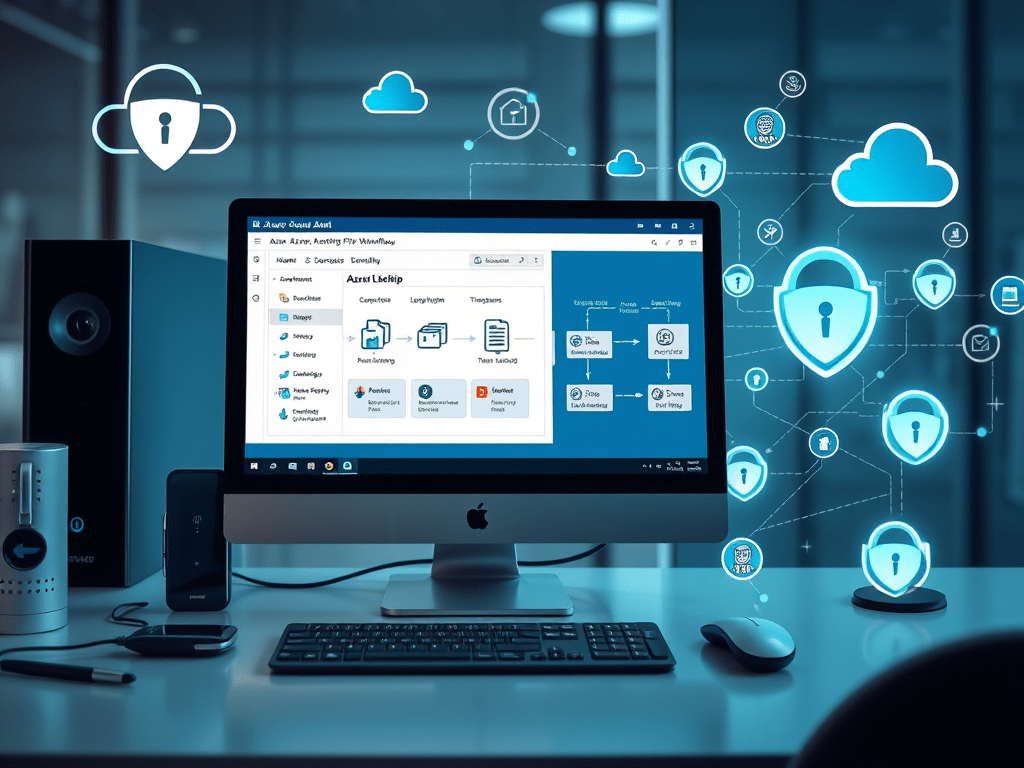
In the digital age, protecting data at every stage is essential, particularly for organizations handling sensitive or regulated information. One crucial aspect of data security is ensuring that files entering an organization’s system are safe from malware and other threats. Automated file scanning at the point of entry is a robust strategy that can secure business workflows and reduce risk exposure.
In this article, we’ll explore how Azure Logic Apps can automate file security workflows for files uploaded to an Azure SFTP location. Specifically, we’ll look at how to trigger a workflow when a file is placed in Azure SFTP, retrieve a timestamp for auditing, scan the file for malware, and decide the next steps based on scan results. This approach creates a seamless, automated layer of security for file uploads, reducing manual intervention and ensuring that only clean files make it to the next stages of your processing pipeline.
Business Case: Automating File Security in SFTP Uploads
Consider an organization that regularly receives files from external sources via an SFTP server. Each file must be validated for security risks before it enters the company’s processing pipeline. With a manual or semi-automated approach, the file handling team would have to download the file, manually scan it, review the results, and only then allow it to be stored or processed. This is a time-consuming and error-prone process that can introduce delays and increase the risk of malware slipping through.
A streamlined solution is needed to address these challenges. The ideal workflow would:
- Automatically scan any file added to the SFTP folder, preventing infected files from entering the main processing environment.
- Provide a timestamp for when each file is uploaded for audit trails and regulatory compliance.
- Automate notifications for security teams when malware is detected, enabling rapid response and containment.
Azure Logic Apps provides the flexibility, scalability, and integration options to achieve this automated workflow with minimal setup. Here’s how it works.
Step 1: Setting Up the Trigger in Azure SFTP
The first step in building this automated security solution is configuring a trigger that initiates the workflow when a file is uploaded to Azure SFTP.
Using the Azure SFTP connector, the Logic App is configured to monitor a specified folder on the Azure SFTP server. This trigger will detect any new file uploaded to the designated folder, automatically initiating the workflow. You can set this trigger to poll the folder at a specified interval, depending on how responsive you need the solution to be. Frequent polling will check for new files more often but can also increase costs.
This immediate response mechanism not only keeps your workflow efficient but also minimizes any delay in identifying and managing potential security threats.
Step 2: Retrieving the File and Metadata
Once the trigger detects a new file, the Logic App retrieves the file and captures essential metadata, such as the filename, file size, and a timestamp of when the file was uploaded. This timestamp is critical for auditing, helping the organization to maintain a clear trail of when files were received and scanned.
After capturing the file details, the Logic App downloads the file content from the SFTP server. For added security, you could store it temporarily in a secure Azure Blob Storage container before processing. Having the file stored securely in Azure also enables better access control and supports logging mechanisms to track each file’s journey through the system.
Step 3: Scanning the File for Malware
The downloaded file is now ready for a security scan to detect any signs of malware. Logic Apps allows for integration with security services like Microsoft Defender for Endpoint, which provides robust malware scanning capabilities. Defender for Endpoint can be accessed via API calls, allowing you to send the file content (or a hash, if supported) and retrieve a security assessment.
Step 4: Taking Action Based on the Scan Results
The scan results determine the next steps in the workflow. The Logic App can respond in two main ways based on the outcome of the malware scan:
1. If No Malware is Detected
- The Logic App moves the clean file to a secure Azure Data Lake Storage (ADLS) location, ready for further processing. This storage setup allows for organized file management, with the added security of Azure’s access control and encryption.
- The Logic App can add a timestamp or other metadata to the file or a tracking database. This timestamp serves as a critical part of the audit trail, ensuring transparency on when each file entered the system and was processed.
- Optionally, the Logic App could trigger additional workflows for clean files, such as parsing the file content, integrating it with other data, or moving it to downstream systems.
2. If Malware is Detected
- Quarantine: The Logic App transfers the infected file to a dedicated quarantine storage area with restricted access. This ensures that the file is contained and accessible only to authorized security personnel for further analysis or reporting.
- Logging: File details, including the filename, timestamp, and scan results, are recorded in a secure log. This log can be maintained in Azure Table Storage or Azure Log Analytics, which supports long-term record-keeping and audit requirements.
- Notification: The Logic App sends an alert to the security team, which may include details of the file and the detected malware. Notifications can be configured to go to multiple channels, such as:
- Chat Platforms: Integrate with Microsoft Teams or Slack to provide real-time notifications to the team.
- This approach ensures that any threat is promptly communicated, allowing security staff to take appropriate action without delay.
Final Thoughts
Automating file security with Azure Logic Apps streamlines your workflow and strengthens your defenses against malware threats. By triggering scans as files are uploaded to Azure SFTP, retrieving and storing timestamps for auditing, and taking action based on scan results, you create a proactive and scalable approach to secure file handling. This workflow not only reduces the manual workload on IT and security teams but also mitigates risks and provides an auditable trail that supports compliance.
With the flexibility and power of Azure Logic Apps, you can customize this workflow further to meet your organization’s unique security and compliance requirements, ensuring that all files entering your systems are clean, compliant, and ready for safe processing.
 data-squads
Leave a comment